How to Highlight Duplicates in Excel (With and Without Formulas)
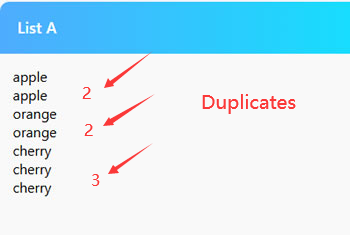
Duplicate data is a common headache when working in Excel. Whether you're cleaning a mailing list, reviewing sales data, or organizing an inventory, finding duplicates is often the first step. Fortunately, Excel offers two powerful ways to identify them: using Conditional Formatting (no formulas needed) and the COUNTIF formula (for more flexibility). Also you can find the method for how to compare lists in excel without formulas.
Method 1: Conditional Formatting (Easiest, No Formulas)
This is the quickest and most visual way to highlight duplicates. It doesn't require entering any formulas.
Step-by-step instructions:
- Select the range of cells you want to check for duplicates.
- On the Excel ribbon, go to the Home tab.
- Click on Conditional Formatting → Highlight Cell Rules → Duplicate Values...
- A dialog box will appear. Choose the formatting you want (e.g., "Light Red Fill with Dark Red Text") and click OK.
Excel will instantly highlight all duplicate entries in the selected range. This method is perfect for one-off checks where you need a quick visual answer.
Method 2: Using the COUNTIF Formula (More Control)
The COUNTIF function counts how many times a specific value appears in a range. By combining it with Conditional Formatting, you can highlight duplicates based on very specific rules, such as highlighting duplicates only in one column based on values in another.
Step-by-step instructions:
- Select your data range (e.g., A1:A100).
- Go to Home → Conditional Formatting → New Rule.
- Select "Use a formula to determine which cells to format".
- Enter the following formula (adjusting the range):
=COUNTIF($A$1:$A$100, A1)>1 - Click Format and choose a fill color or text color.
- Click OK.
This formula will highlight a cell if its value appears more than once in the specified range. The use of absolute references (e.g., $A$1:$A$100) ensures the range doesn't shift, while the relative reference (A1) applies the rule to each cell in the selection.
Pro Tip: Highlight Entire Row for Duplicates in One Column
You can use the same COUNTIF technique to highlight the entire row based on a duplicate in a key column:
Formula: =COUNTIF($B$1:$B$100, $B1)>1
Set the "Applies to" range to $A$1:$C$100, and the entire row will be highlighted if column B has a duplicate.
Alternative: Use Our Online Tool
If you don't have Excel installed or want the fastest way to just see the unique items without affecting your original file, you may use our list comparsion tool. Just simply paste your items into List A, leave List B empty, then click the Compare button. You'll see the unique items displayed in 'Only In List A'.